aster.cloud aster.cloud
  • /
  • Platforms
    • Public Cloud
    • On-Premise
    • Hybrid Cloud
    • Data
  • Architecture
    • Design
    • Solutions
    • Enterprise
  • Engineering
    • Automation
    • Software Engineering
    • Project Management
    • DevOps
  • Programming
    • Learning
  • Tools
  • About
  • /
  • Platforms
    • Public Cloud
    • On-Premise
    • Hybrid Cloud
    • Data
  • Architecture
    • Design
    • Solutions
    • Enterprise
  • Engineering
    • Automation
    • Software Engineering
    • Project Management
    • DevOps
  • Programming
    • Learning
  • Tools
  • About
aster.cloud aster.cloud
  • /
  • Platforms
    • Public Cloud
    • On-Premise
    • Hybrid Cloud
    • Data
  • Architecture
    • Design
    • Solutions
    • Enterprise
  • Engineering
    • Automation
    • Software Engineering
    • Project Management
    • DevOps
  • Programming
    • Learning
  • Tools
  • About
  • Data
  • Engineering
  • Programming
  • Software Engineering

How-To: Install and Configure MongoDB Community on Ubuntu 20.04

  • aster.cloud
  • September 6, 2022
  • 3 minute read

The following guide shows installation and configuration of MongoDB 6.0 (the latest version at the time of this is published) on Ubuntu 20.04. Also note that MongoDB 6.0 is not yet officially supported on Ubuntu 22.04.


Partner with aster.cloud
for your next big idea.
Let us know here.


From our partners:

CITI.IO :: Business. Institutions. Society. Global Political Economy.
CYBERPOGO.COM :: For the Arts, Sciences, and Technology.
DADAHACKS.COM :: Parenting For The Rest Of Us.
ZEDISTA.COM :: Entertainment. Sports. Culture. Escape.
TAKUMAKU.COM :: For The Hearth And Home.
ASTER.CLOUD :: From The Cloud And Beyond.
LIWAIWAI.COM :: Intelligence, Inside and Outside.
GLOBALCLOUDPLATFORMS.COM :: For The World's Computing Needs.
FIREGULAMAN.COM :: For The Fire In The Belly Of The Coder.
ASTERCASTER.COM :: Supra Astra. Beyond The Stars.
BARTDAY.COM :: Prosperity For Everyone.

Prerequisites

  • Operating System: Ubuntu 20.04
  • Command Line Interface or Terminal


Installation


01. Open a terminal window


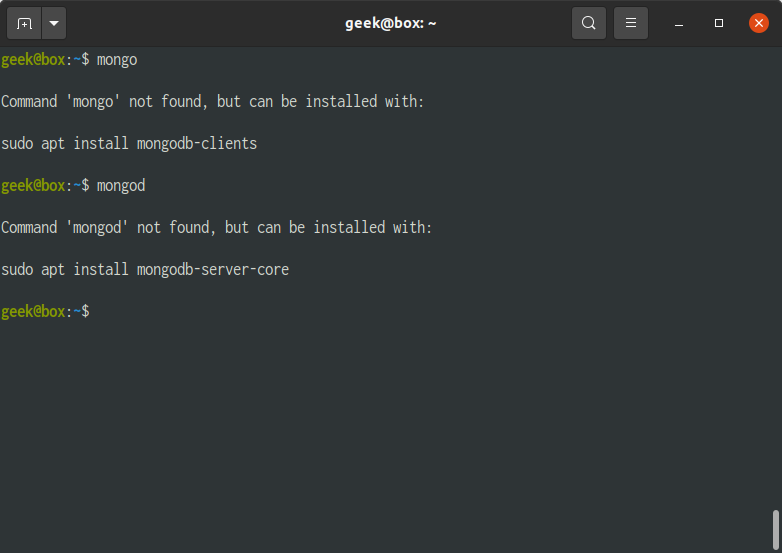
02. Check if MongoDB is already installed. Execute the following to determine.

$ mongo

and

$ mongod


It should show some suggestions on how to install MongoDB.
 

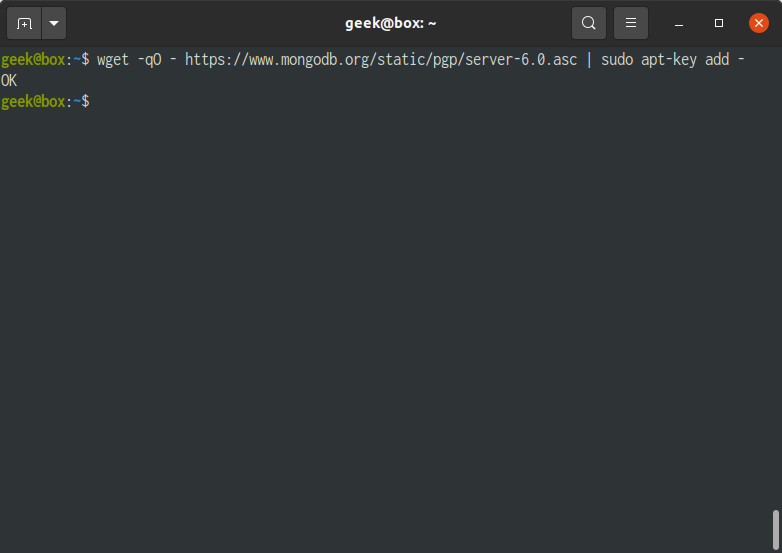
03. At the CLI, import the public key used by the package management system. This will install an official version of MongoDB.

$ wget -qO - https://www.mongodb.org/static/pgp/server-6.0.asc | sudo apt-key add -
 

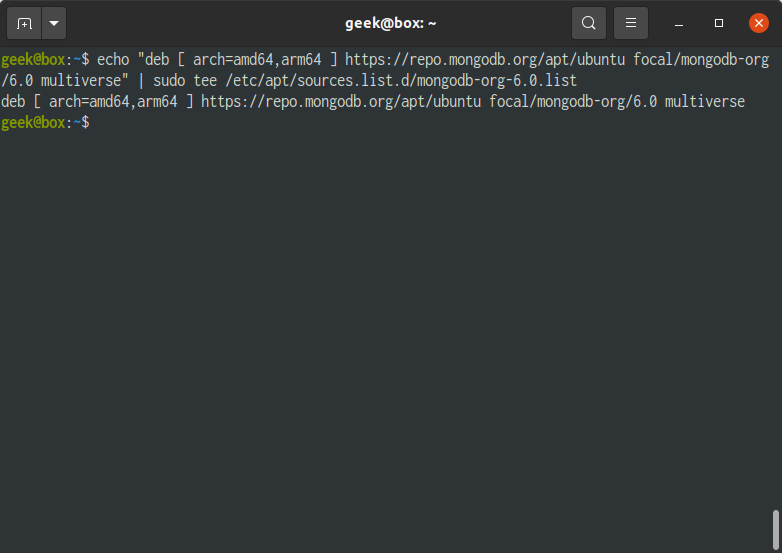
04. Create a list file for MongoDB

$ echo "deb [ arch=amd64,arm64 ] https://repo.mongodb.org/apt/ubuntu focal/mongodb-org/6.0 multiverse" | sudo tee /etc/apt/sources.list.d/mongodb-org-6.0.list
 

05. Reload local package database.

$ sudo apt update


06. Install the MongoDB packages.

$ sudo apt install mongodb-org -y
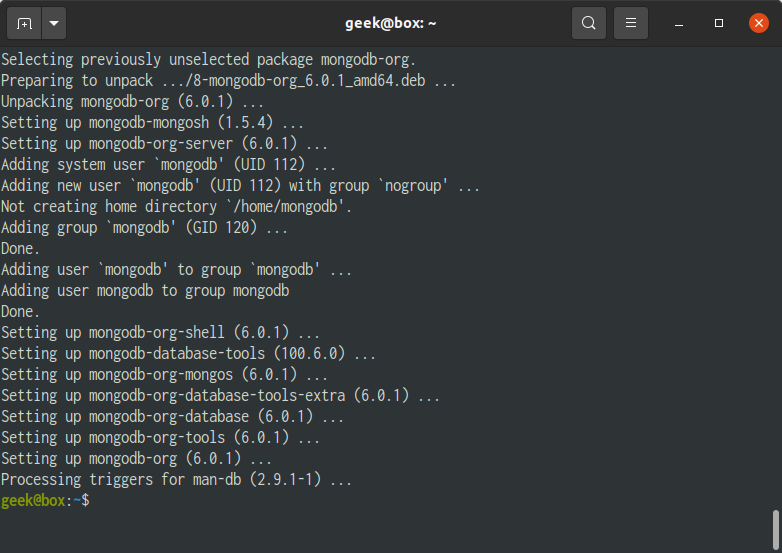
 

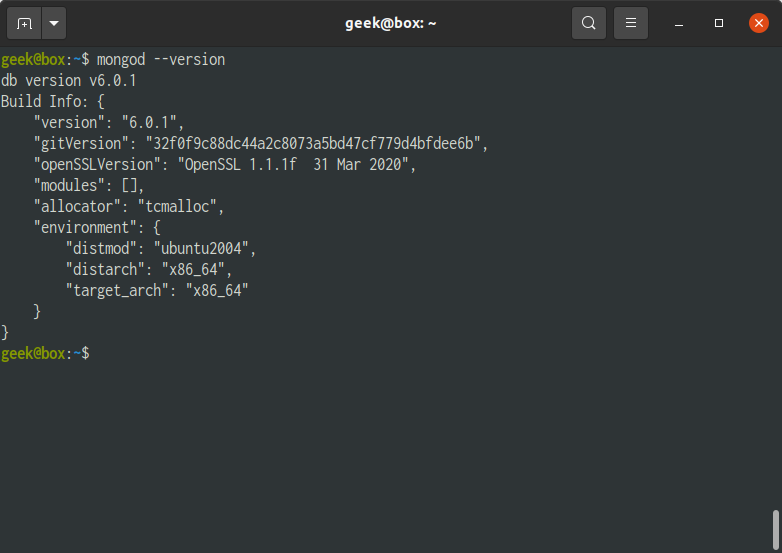
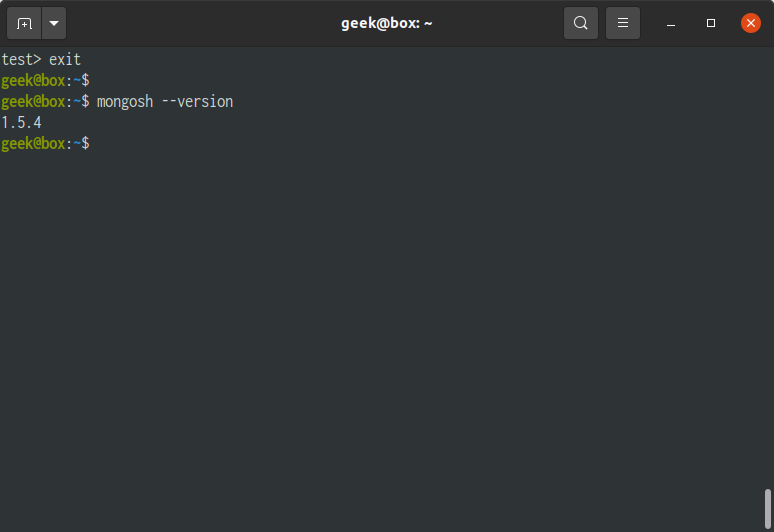
07. Check the version. If the version is returned, this means that MongoDB has been installed correctly.


Since starting MongoDB 6.0, the mongo command has been replaced with mongosh. For the compatibility changes see here.

$ mongod --version

or

$ mongosh --version


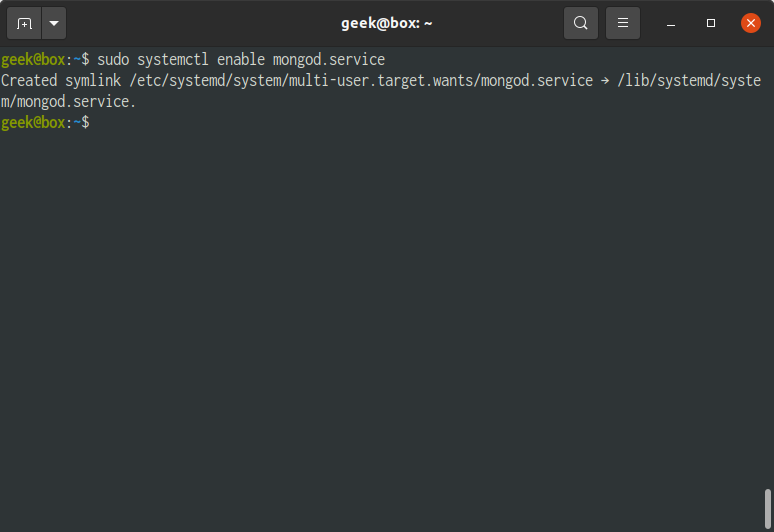
08. Configure MongoDB to start on system boot.

$ sudo systemctl enable mongod.service
 

09. Connect to the Mongo shell.

$ mongosh
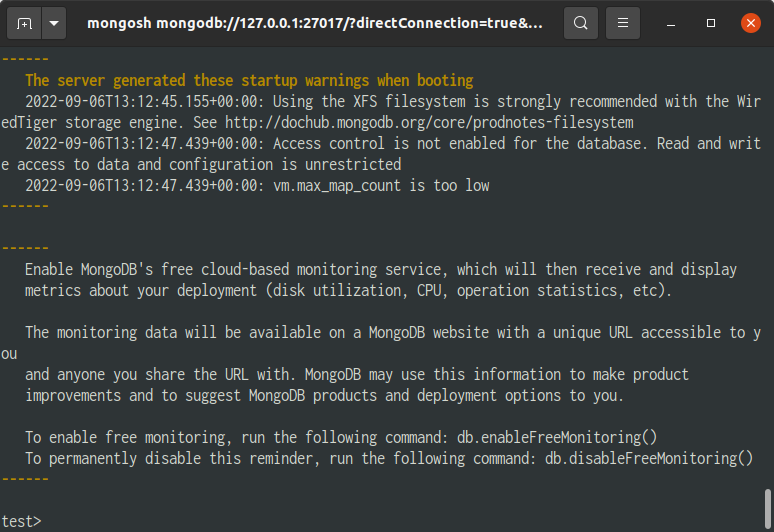
 

Enter exit to escape from the mongo shell.

test> exit


If you are unable to connect to the mongo shell. Try restarting the mongod service.

$ sudo service mongod restart


Changing the MongoDB Port


Changing the default port of MongoDB provides a first line of defence against unwanted intruders. While it isn’t a sure-way for deferring against bots that sweep through ports that try to access the database, it prevents them from trying to access the database using the default port. For security it is better to enable other mechanisms such as creating database users that have specific roles and access to databases with credentials.

Read More  Start Programming In Racket By Writing A "Guess The Number" Game


01. Edit the MongoDB configuration file

$ sudo nano /etc/mongod.conf


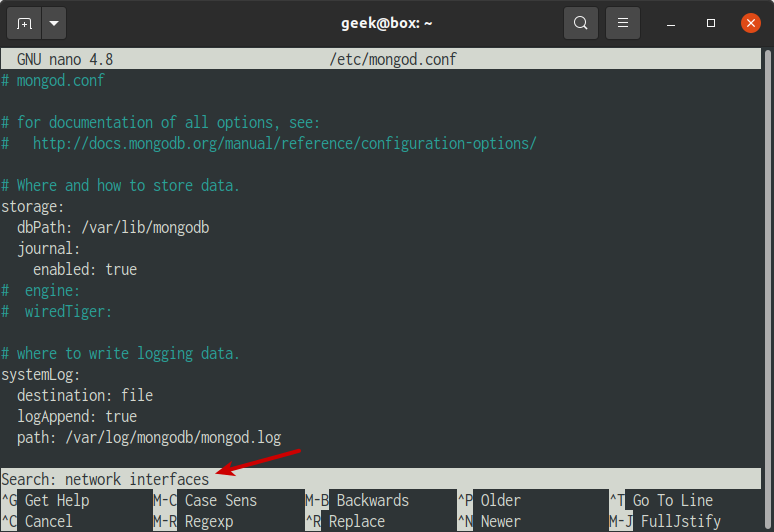
02. While on the nano interface, press Ctrl+W (or command for Mac)  to search for the text, “network interfaces”. Then press Enter.
 

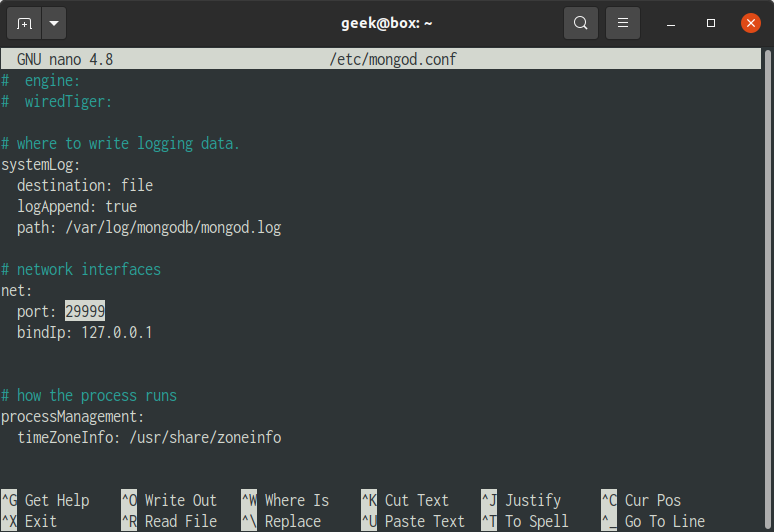
In this example change the port to 29999. After changing the port, Press Ctrl+O (or command for Mac), then Enter. Ctrl+X to exit the nano editor.
 

03. Restart MongoDB service to apply the changes

$ sudo service mongod restart


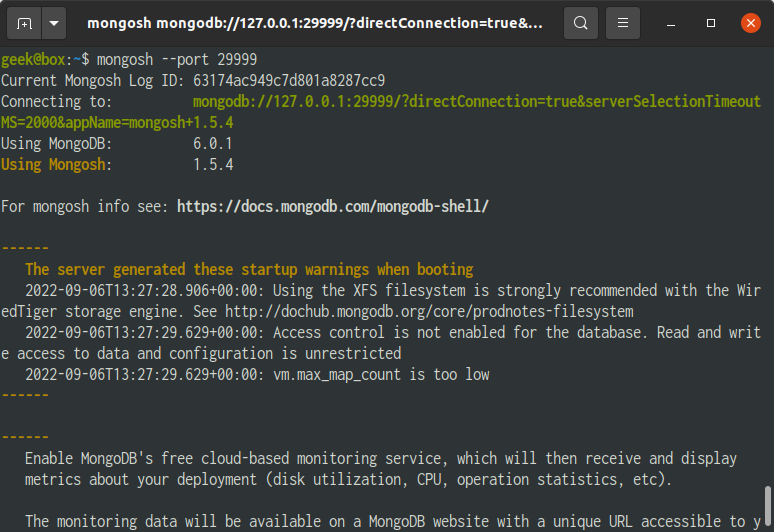
04. After restart, you cannot connect to the MongoDB using the default mongod command. Instead you have to identify the port.

$ mongosh --port 29999
 

Adding Authentication


While for development purposes the current setup will suffice. But for production it is recommended to enable authentication and add a db user with password for security.


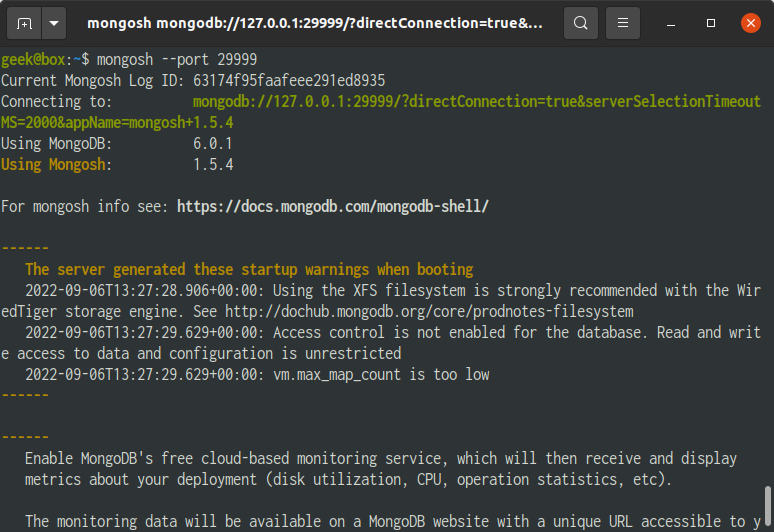
01. Access the MongoDB shell

$ mongosh
# or if port has been changed$ mongosh --port <new-mongodb-port>
 

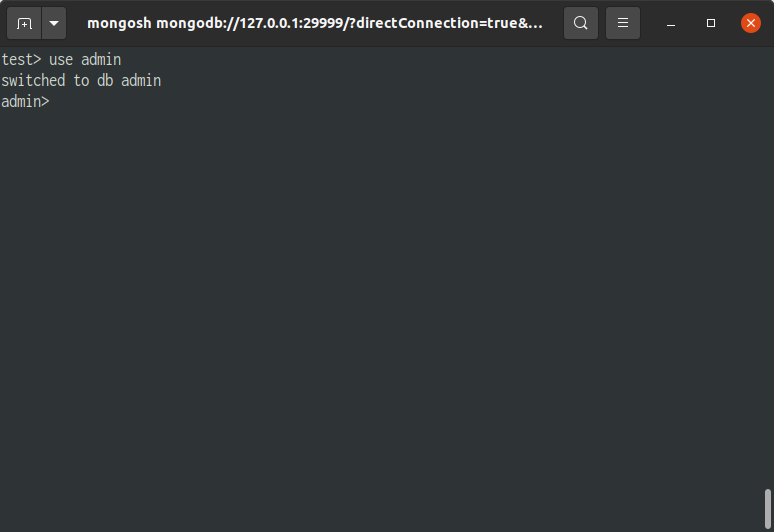
02. Switch to the admin database

> use admin
 

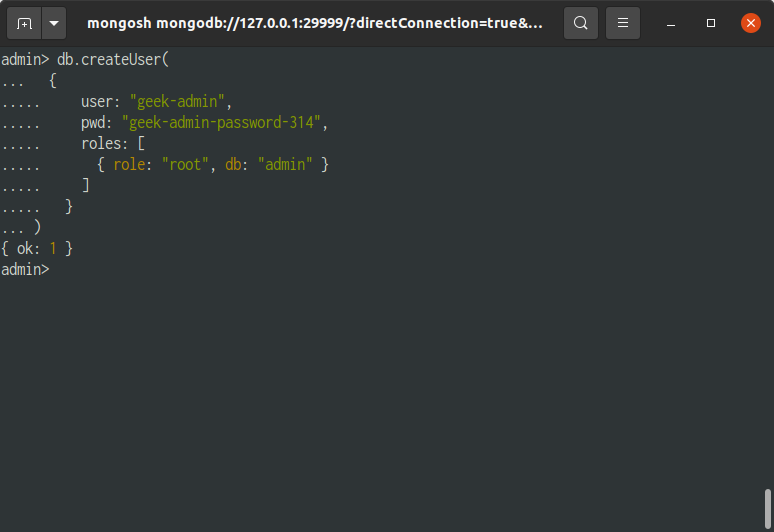
03. Create a Root user account. On the MongoDB shell, execute the following. Replace the geek-admin and geek-admin-password-314 with your preferred credentials.


Note that roles here should be configured as needed. In this example, we are using the root role. For the list of roles see the following link : https://docs.mongodb.com/manual/reference/built-in-roles/

db.createUser(  {    user: "geek-admin",    pwd: "geek-admin-password-314",    roles: [       { role: "root", db: "admin" }     ]  })


It should show something similar. This shows that the user has been added.
 

Exit from the mongo shell.

admin> exit


04. Edit the MongoDB configuration file

$ sudo nano /etc/mongod.conf


Read More  How Carbon-Free Is Your Cloud? New Data Lets You Know

05. While on the nano interface, press Ctrl+W (or command for Mac)  to search for the text, “security”. Then press Enter.
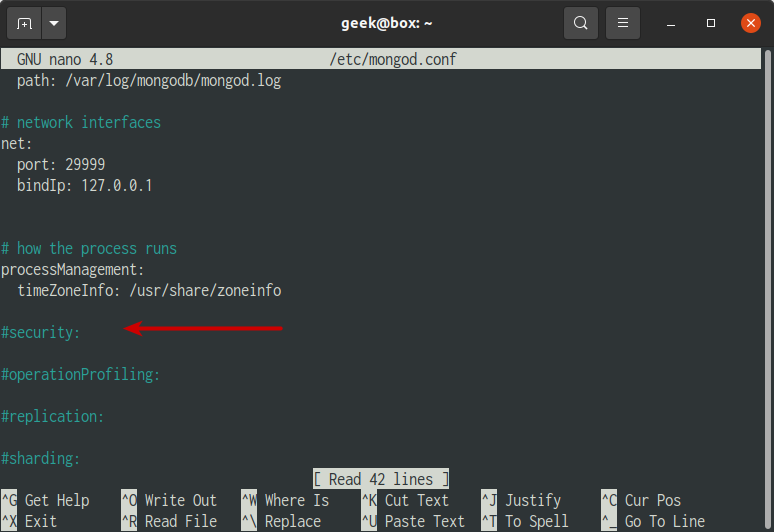
 

06. Update the following lines on the #security section.

security:  authorization: enabled
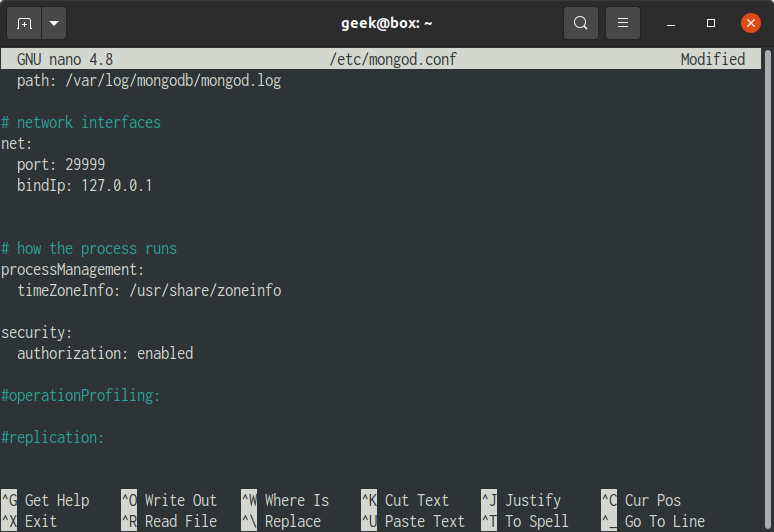
 

07. Restart the MongoDB service.

$ sudo service mongod restart


or restart the MongoDB instance with access control

admin> db.adminCommand({shutdown:1})


08. Test the new user by using the following authentication command.

$ mongosh --port 29999 --username geek-admin --password geek-admin-password-314 --authenticationDatabase admin


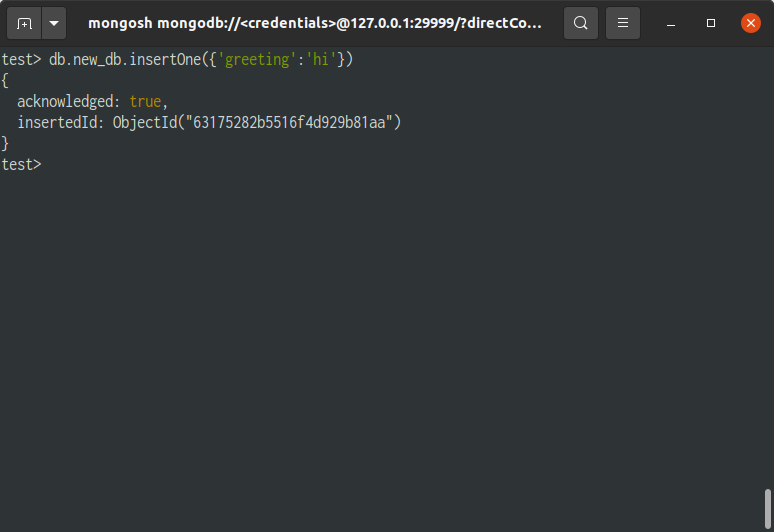
Insert a new document or record.

test> db.new_db.insertOne({'greeting':'hi'})
 

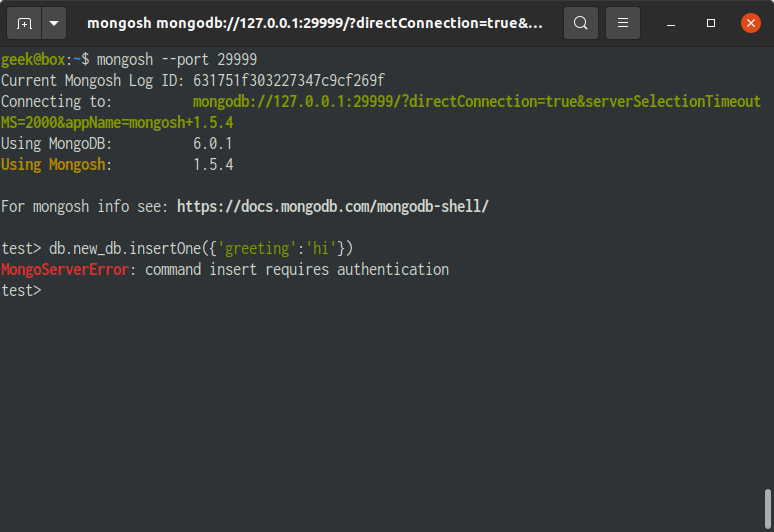
09. To test if authentication is really working, try the following. It access the mongo shell without any authentication and is given an error when interacting with the database.

$ mongosh --port 29999 
test> db.new_db.insertOne({'greeting':'hi'})
Appendix

Start MongoDB service

$ sudo service mongod start

  Restart MongoDB service

$ sudo service mongod restart

  Stop MongoDB service

$ sudo service mongod stop


For enquiries, product placements, sponsorships, and collaborations, connect with us at [email protected]. We'd love to hear from you!

Our humans need coffee too! Your support is highly appreciated, thank you!

aster.cloud

Related Topics
  • Databases
  • MongoDB
  • MongoDB 6
  • Tutorials
  • Ubuntu
  • Ubuntu 20.04
You May Also Like
Data center
View Post
  • Data
  • Public Cloud

Data Sovereignty in Spain. It’s Not Just About the Law, It’s About Efficiency

  • June 3, 2026
View Post
  • Data
  • Platforms
  • Technology

Scaling cloud and AI: Microsoft Azure’s commitment to Europe’s digital future

  • May 11, 2026
View Post
  • Data

Streamline read scalability with Cloud SQL autoscaling read pools

  • March 23, 2026
View Post
  • Data
  • Platforms
  • Public Cloud

PayPal’s historically large data migration is the foundation for its gen AI innovation

  • March 4, 2026
View Post
  • Data
  • Technology

3 obstacles to agentic AI adoption and how to overcome them

  • December 22, 2025
Points, Lines and a Question
View Post
  • Architecture
  • Design
  • Engineering
  • People

What Is The Point In Making Points?

  • November 26, 2025
View Post
  • Software Engineering

Embedded Swift Improvements Coming in Swift 6.3

  • November 22, 2025
Visual Studio Code
View Post
  • Software Engineering

Visual Studio 2026 is here: faster, smarter, and a hit with early adopters

  • November 12, 2025

Stay Connected!
LATEST
  • 1
    IBM Study: One in Four Malicious Breaches are AI-Enabled, Costing Companies $6 Million on Average
    • July 29, 2026
  • 2
    Accelerating the frontiers of scientific discovery: Google’s $40M commitment to the Genesis Mission
    • July 26, 2026
  • 3
    3 Questions: Neural transparency and the future of AI design
    • July 17, 2026
  • 4
    Intel Invests €5 Billion to Expand Manufacturing in Europe
    • July 13, 2026
  • 5
    IBM and Red Hat Expand Lightwell with New Offerings to Build the Trust Infrastructure for AI-Era Open Source
    • July 8, 2026
  • 6
    When I Was Young
    • July 4, 2026
  • 7
    The Fastest AI Fried Chicken In The World
    • June 29, 2026
  • 8
    Zed Approves | How to Stay Cool in Extreme Heat
    • June 29, 2026
  • 9
    The AI investment surge hasn’t produced the expected results yet. That could change in 2026
    • June 26, 2026
  • 10
    Zed Approves | It’s Prime Day 2026! Time to Upgrade Your World Cup Viewing Setup and Beat the Heat
    • June 25, 2026
about
Hello World!

We are aster.cloud. We’re created by programmers for programmers.

Our site aims to provide guides, programming tips, reviews, and interesting materials for tech people and those who want to learn in general.

We would like to hear from you.

If you have any feedback, enquiries, or sponsorship request, kindly reach out to us at:

[email protected]
Most Popular
  • 1
    Zed Approves | The Best Prime Day PC Deals: Top Gaming Rigs, Workstations, and Everyday Laptops
    • June 24, 2026
  • neon-cart 2
    Zed Approves: How to Gear Up for GTA 6 This Amazon Prime Day (2026 Quick Guide)
    • June 22, 2026
  • zedreviews-valerion 3
    Father’s Day Outdoors – Build Dad the Ultimate Backyard Watch Party
    • June 20, 2026
  • zedreviews-fathers-day-50830 4
    Father’s Day Outdoors, Round Two – Gear for the Action, the Tailgate, and Beating the Heat
    • June 20, 2026
  • zedreviews-fathers-day-2147684744 5
    The Ultimate Father’s Day Gift Guide – Home Entertainment Upgrades Dad Actually Wants
    • June 20, 2026
  • /
  • Technology
  • Tools
  • About
  • Contact Us

Input your search keywords and press Enter.