aster.cloud aster.cloud
  • /
  • Platforms
    • Public Cloud
    • On-Premise
    • Hybrid Cloud
    • Data
  • Architecture
    • Design
    • Solutions
    • Enterprise
  • Engineering
    • Automation
    • Software Engineering
    • Project Management
    • DevOps
  • Programming
    • Learning
  • Tools
  • About
  • /
  • Platforms
    • Public Cloud
    • On-Premise
    • Hybrid Cloud
    • Data
  • Architecture
    • Design
    • Solutions
    • Enterprise
  • Engineering
    • Automation
    • Software Engineering
    • Project Management
    • DevOps
  • Programming
    • Learning
  • Tools
  • About
aster.cloud aster.cloud
  • /
  • Platforms
    • Public Cloud
    • On-Premise
    • Hybrid Cloud
    • Data
  • Architecture
    • Design
    • Solutions
    • Enterprise
  • Engineering
    • Automation
    • Software Engineering
    • Project Management
    • DevOps
  • Programming
    • Learning
  • Tools
  • About
  • Public Cloud
  • Software

Let’s Build A Windows Virtual Machine

  • aster.cloud
  • May 15, 2023
  • 3 minute read

reating a virtual machine (VM), a computer you can use without needing to purchase, set up, or keep around, is one of the most basic functions of the cloud.  You can rent as many computers as you need and delete them when you’re done with them.

But VMs are only a benefit if setting up a virtual machine is easy.  In Google Cloud, creating a VM is done with the Compute Engine service.  There’s a short (about 5 minutes) interactive tutorial to get you started.  I’ll explain what’s going on in that tutorial here, but you should walk through the tutorial as well to see all of the exact steps.


Partner with aster.cloud
for your next big idea.
Let us know here.


From our partners:

CITI.IO :: Business. Institutions. Society. Global Political Economy.
CYBERPOGO.COM :: For the Arts, Sciences, and Technology.
DADAHACKS.COM :: Parenting For The Rest Of Us.
ZEDISTA.COM :: Entertainment. Sports. Culture. Escape.
TAKUMAKU.COM :: For The Hearth And Home.
ASTER.CLOUD :: From The Cloud And Beyond.
LIWAIWAI.COM :: Intelligence, Inside and Outside.
GLOBALCLOUDPLATFORMS.COM :: For The World's Computing Needs.
FIREGULAMAN.COM :: For The Fire In The Belly Of The Coder.
ASTERCASTER.COM :: Supra Astra. Beyond The Stars.
BARTDAY.COM :: Prosperity For Everyone.

Once you’ve finished this tutorial, be sure to check the references to learn more about creating and using VMs.

Selecting a project

Everything in your application will be in a project, so you’ll either need to create or select a project to do this tutorial in.  Projects need to be associated with a billing account, so if you don’t have one, consider signing up for the Free Trial.  You’ll start in the Cloud Console.

Enabling APIs

Normally you will go to APIs and services from the Navigation menu to enable the Compute Engine API, but the tutorial will let you do this by just clicking a button.  If you’ve already enabled the Compute Engine API for a project, you won’t need to enable it again.

Creating a VM

In this tutorial, you’ll create a Windows Server VM.  (Don’t worry; if you want a Linux VM, there’s a tutorial for that too!)  From the Navigation menu, select Computer Engine.  By default, you’ll go to the first item in the submenu, which is VM instances.  

Read More  Intel Granulate Optimizes Databricks Data Management Operations

You can then click Create instance to create a new VM.  You’ll notice there are a lot of options, allowing you to change the name, the machine configuration, the boot disk, and far more.  As you change options, notice how the price for the VM changes in the upper right of the screen.
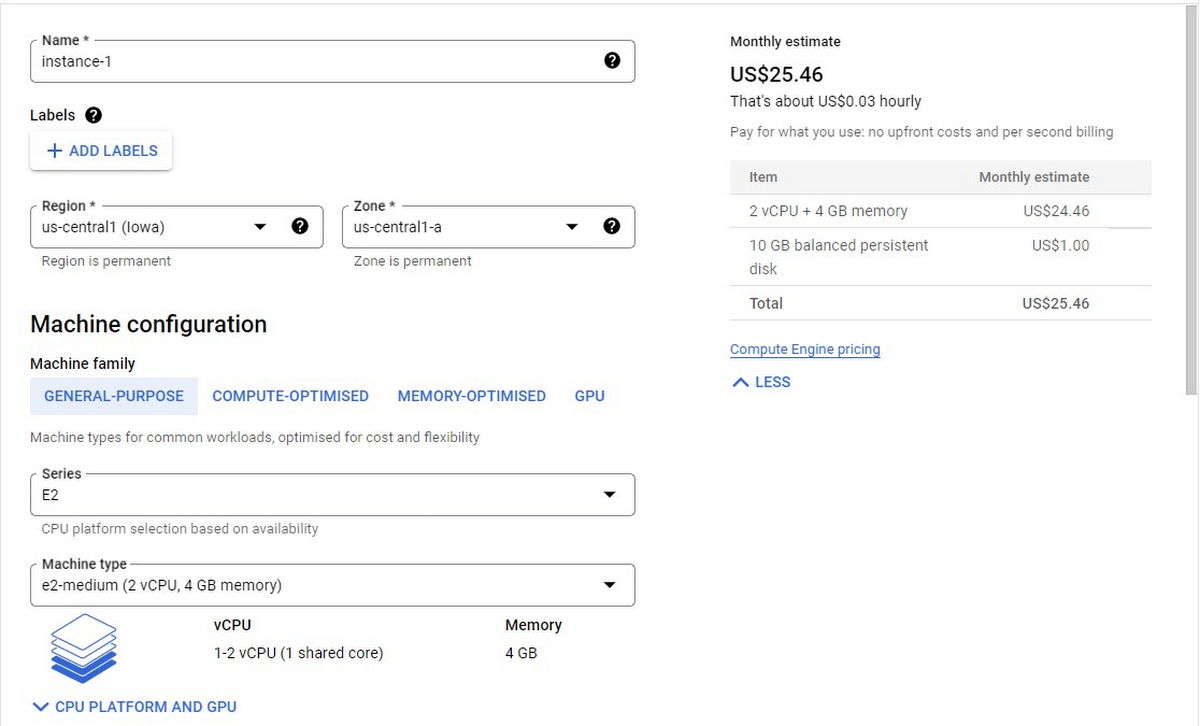
https://storage.googleapis.com/gweb-cloudblog-publish/images/Figure_1_VM_Options-page_1_c7PE6WV.max-1200x1200.jpg
Figure 1-Some of the many VM options available

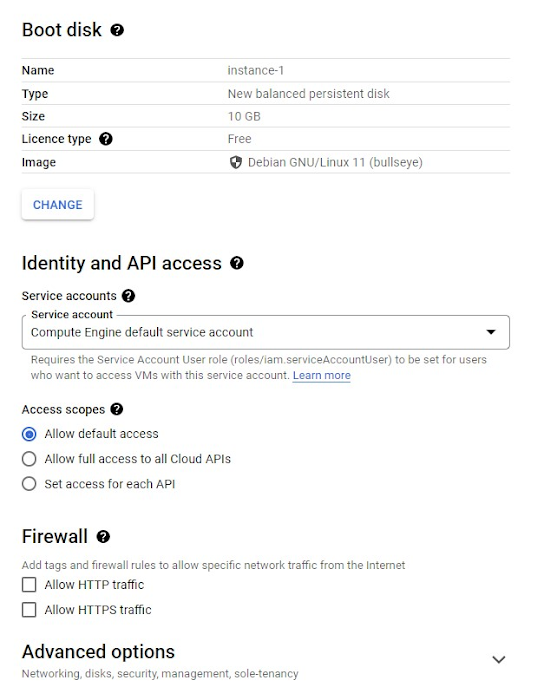
The tutorial will give you suggested changes to make to change the operating system and allow HTTP traffic.  These options can be seen further down the options screen, as shown in Figure 2.  It will also help you find the right places to enter this information–the first time you see these screens they may be a bit overwhelming!
https://storage.googleapis.com/gweb-cloudblog-publish/images/Figure_2_VM_Options-page_2_vGjF4qu.max-700x700.jpg
Figure 2 – More of the VM options

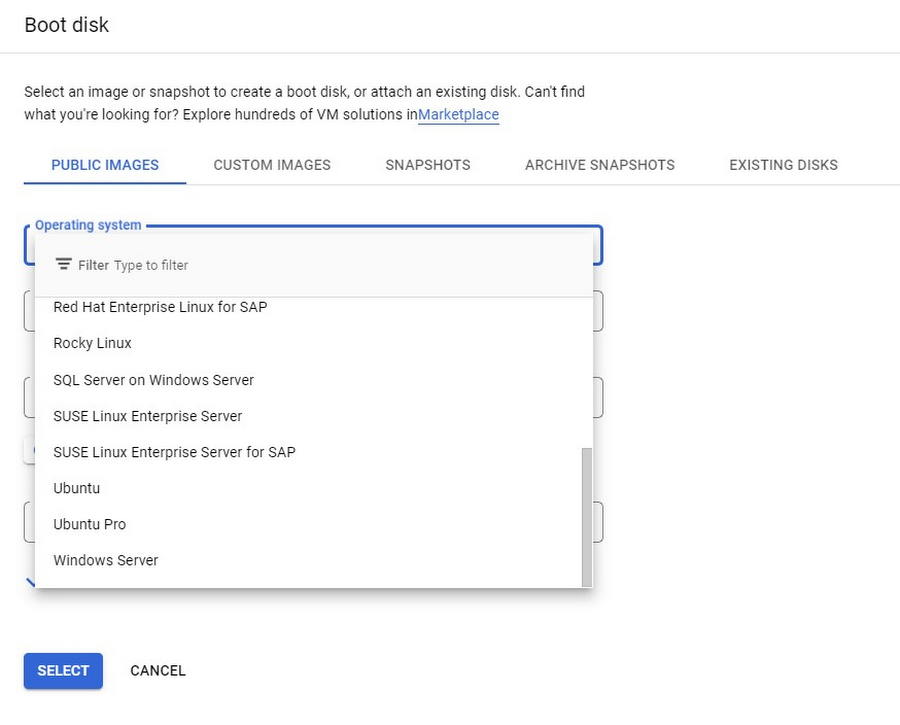
There are a variety of different operating systems available as shown in the Boot disk section (Figure 3).  Once you’ve selected an operating system, you may also need to select the particular version of that OS.  For operating systems with a licensing fee, that fee will be included in the price of the VM.  Try some out and see how the price changes.

The boot disk section also gives you the ability to use custom images, snapshots, and existing VMs to create your image.  You can find out more about these in the reference section.
https://storage.googleapis.com/gweb-cloudblog-publish/images/Figure_3_VM_Options-page_3_nNbHEV6.max-900x900.jpg
Figure 3 – Some of the built-in OS options

Connecting to the VM 

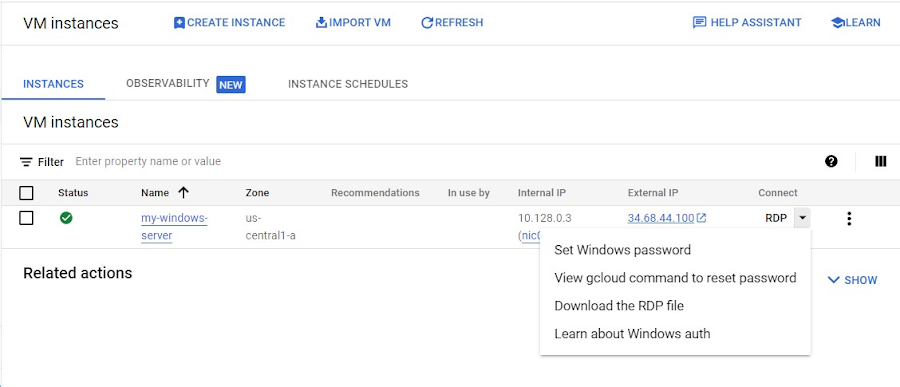
Once you’ve set the options, select Create, which will return you to the VM instances page, as shown in Figure 4.  Once there’s a checkmark next to the VM, it’s ready to go.  Before accessing the VM, you’ll need to set up a password.  This is easy enough to do by clicking the down arrow in the Connect column and selecting Set Windows password.  Be sure to save the password!  

Read More  From Your Device To Google Cloud API: Networking Basics

Once you have a password, you can connect to the server using your RDP client.   If you have problems, information on troubleshooting RDP is available.  At this point you can administer the machine, set up accounts, install software, etc. just as you’d do with any Windows machine.
https://storage.googleapis.com/gweb-cloudblog-publish/images/Figure_4_Windows-VM-instances.max-900x900.jpg
Figure 4 – The VM instances page

Cleaning up

There is a charge to both keep a VM running and to store its boot disk.  You can stop the charge to run the VM by selecting it on the VM instances page and then clicking stop.  If you won’t be using this VM again, you can select the VM and press Delete instead.

Yes, the tutorial shows you exactly how to do this!

While there are lots more details about Compute Engine, you’ve got the big picture now.  Go do something creative and useful with it!

By Laurie White Developer Relations Engineer
Originally published at Google Cloud

Source: Cyberpogo


For enquiries, product placements, sponsorships, and collaborations, connect with us at [email protected]. We'd love to hear from you!

Our humans need coffee too! Your support is highly appreciated, thank you!

aster.cloud

Related Topics
  • API
  • Google Cloud
  • Virtual Machine
  • VM
  • Windows
You May Also Like
View Post
  • Public Cloud

Accelerating the frontiers of scientific discovery: Google’s $40M commitment to the Genesis Mission

  • July 26, 2026
View Post
  • Public Cloud

Connecting AI agents with unstructured data using Google Cloud Storage MCP Servers

  • June 10, 2026
Data center
View Post
  • Data
  • Public Cloud

Data Sovereignty in Spain. It’s Not Just About the Law, It’s About Efficiency

  • June 3, 2026
View Post
  • Data
  • Platforms
  • Public Cloud

PayPal’s historically large data migration is the foundation for its gen AI innovation

  • March 4, 2026
Google Cloud and ElevenLabs
View Post
  • Public Cloud
  • Technology

ElevenLabs Partners with Google Cloud for Cloud Services and the Latest NVIDIA Blackwell GPUs

  • February 26, 2026
View Post
  • Public Cloud

Delivering a secure, open, and sovereign digital world

  • February 12, 2026
View Post
  • Public Cloud

Formula E and Google Cloud Announce Multi-Year ‘Principal Partnership’

  • January 26, 2026
View Post
  • Public Cloud

Sawasdee Thailand! Google Cloud launches new region in Bangkok

  • January 23, 2026

Stay Connected!
LATEST
  • 1
    IBM Study: One in Four Malicious Breaches are AI-Enabled, Costing Companies $6 Million on Average
    • July 29, 2026
  • 2
    Accelerating the frontiers of scientific discovery: Google’s $40M commitment to the Genesis Mission
    • July 26, 2026
  • 3
    3 Questions: Neural transparency and the future of AI design
    • July 17, 2026
  • 4
    Intel Invests €5 Billion to Expand Manufacturing in Europe
    • July 13, 2026
  • 5
    IBM and Red Hat Expand Lightwell with New Offerings to Build the Trust Infrastructure for AI-Era Open Source
    • July 8, 2026
  • 6
    When I Was Young
    • July 4, 2026
  • 7
    The Fastest AI Fried Chicken In The World
    • June 29, 2026
  • 8
    Zed Approves | How to Stay Cool in Extreme Heat
    • June 29, 2026
  • 9
    The AI investment surge hasn’t produced the expected results yet. That could change in 2026
    • June 26, 2026
  • 10
    Zed Approves | It’s Prime Day 2026! Time to Upgrade Your World Cup Viewing Setup and Beat the Heat
    • June 25, 2026
about
Hello World!

We are aster.cloud. We’re created by programmers for programmers.

Our site aims to provide guides, programming tips, reviews, and interesting materials for tech people and those who want to learn in general.

We would like to hear from you.

If you have any feedback, enquiries, or sponsorship request, kindly reach out to us at:

[email protected]
Most Popular
  • 1
    Zed Approves | The Best Prime Day PC Deals: Top Gaming Rigs, Workstations, and Everyday Laptops
    • June 24, 2026
  • neon-cart 2
    Zed Approves: How to Gear Up for GTA 6 This Amazon Prime Day (2026 Quick Guide)
    • June 22, 2026
  • zedreviews-valerion 3
    Father’s Day Outdoors – Build Dad the Ultimate Backyard Watch Party
    • June 20, 2026
  • zedreviews-fathers-day-50830 4
    Father’s Day Outdoors, Round Two – Gear for the Action, the Tailgate, and Beating the Heat
    • June 20, 2026
  • zedreviews-fathers-day-2147684744 5
    The Ultimate Father’s Day Gift Guide – Home Entertainment Upgrades Dad Actually Wants
    • June 20, 2026
  • /
  • Technology
  • Tools
  • About
  • Contact Us

Input your search keywords and press Enter.