aster.cloud aster.cloud
  • /
  • Platforms
    • Public Cloud
    • On-Premise
    • Hybrid Cloud
    • Data
  • Architecture
    • Design
    • Solutions
    • Enterprise
  • Engineering
    • Automation
    • Software Engineering
    • Project Management
    • DevOps
  • Programming
    • Learning
  • Tools
  • About
  • /
  • Platforms
    • Public Cloud
    • On-Premise
    • Hybrid Cloud
    • Data
  • Architecture
    • Design
    • Solutions
    • Enterprise
  • Engineering
    • Automation
    • Software Engineering
    • Project Management
    • DevOps
  • Programming
    • Learning
  • Tools
  • About
aster.cloud aster.cloud
  • /
  • Platforms
    • Public Cloud
    • On-Premise
    • Hybrid Cloud
    • Data
  • Architecture
    • Design
    • Solutions
    • Enterprise
  • Engineering
    • Automation
    • Software Engineering
    • Project Management
    • DevOps
  • Programming
    • Learning
  • Tools
  • About
  • Computing

Cloud SQL And Powershell Working Together On Linux

  • aster.cloud
  • December 29, 2022
  • 7 minute read

PowerShell is a powerful scripting tool often used by database administrators for managing Microsoft SQL Server. This blog will focus on the aspects of using PowerShell for common database tasks and management on a Cloud SQL for SQL Server instance. We will also look at dbatools.io and how this can be used on instances with cross-region replicas, external replication, and other key features enabled.

Google Cloud Tools for PowerShell also lets you run various cmdlets from the gcloud CLI – you can learn more in our documentation – but the focus of this post is on running PowerShell from a standalone virtual machine. PowerShell now supports both Windows and Linux, which means you can install it on a Compute Engine Linux Virtual Machine (VM).


Partner with aster.cloud
for your next big idea.
Let us know here.


From our partners:

CITI.IO :: Business. Institutions. Society. Global Political Economy.
CYBERPOGO.COM :: For the Arts, Sciences, and Technology.
DADAHACKS.COM :: Parenting For The Rest Of Us.
ZEDISTA.COM :: Entertainment. Sports. Culture. Escape.
TAKUMAKU.COM :: For The Hearth And Home.
ASTER.CLOUD :: From The Cloud And Beyond.
LIWAIWAI.COM :: Intelligence, Inside and Outside.
GLOBALCLOUDPLATFORMS.COM :: For The World's Computing Needs.
FIREGULAMAN.COM :: For The Fire In The Belly Of The Coder.
ASTERCASTER.COM :: Supra Astra. Beyond The Stars.
BARTDAY.COM :: Prosperity For Everyone.

Initial setup and getting started

You can install PowerShell on a Compute Engine VM, just as you can install SQL Server Management Studio on a VM for managing a Cloud SQL instance. PowerShell is installed by default and requires no setup on any Windows Compute Engine VM that you create, and you can also install it in a Compute Engine Linux VM. The 7 steps below are needed to get the PowerShell environment set up on a Compute Engine Linux VM with dbatools.io

  1. Create a VM
  2. Connect to the VM
  3. Install PowerShell
  4. Launch PowerShell
  5. Verify PowerShell setup
  6. Install dbatools.io
  7. Verify dbatools.io setup

Step 1. Create a VM
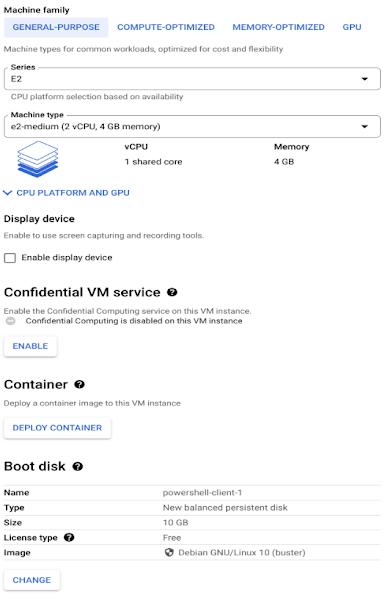
Step 2. Connect to the VMConnect to your Linux VM following these instructions.Step 3. Install PowerShellFollow the steps from here to install PowerShell

Step 4. Launch PowerShell

Now start PowerShell using the command below
# Start PowerShell
pwsh

You should get a command prompt similar to the one below.
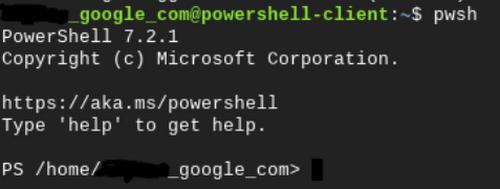
Step 5. Verify PowerShell setupYou can verify PowerShell is working by running the command below 
Step 5. Install dbatools.ioNext install dbatools.io using the command below, this is also documented here
# run this command
Install-Module dbatoolsStep 6. Verify dbatools.io setupIn these examples I will be using SQL Server authentication to connect to each database. To do this, we need to create a PowerShell credential so that we can authenticate to the database server.

$sqlserver = Get-Credential -UserName "sqlserver"

Now, let’s run a test query to verify that our setup is working as expected. We can use the Get-DbaDatabase cmdlet to connect to our SQL Server instance and list all the user databases as below. This helps verify connectivity between source and destination.
Get-DbaDatabase -SqlInstance 10.59.176.56 -SqlCredential $sqlserver -ExcludeSystem
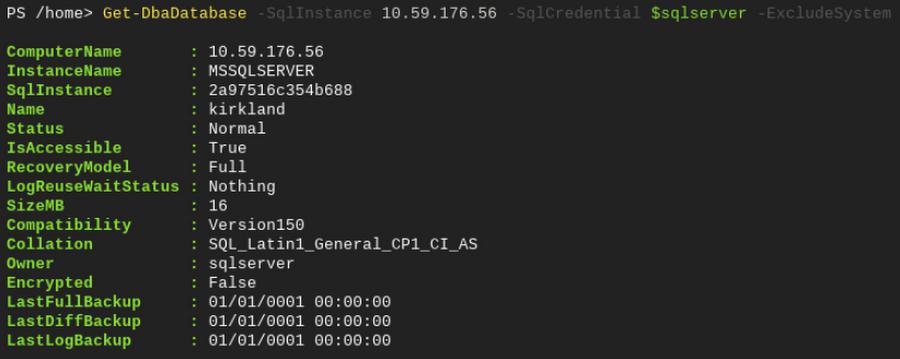
dbatools.io has a lot of cmdlets provided out of the box that can be used to manage your Cloud SQL instance. You may even use this to complete a few of the DBA tasks recommended in our best practices. The next section will cover the scenarios listed below for TempDB.

  • Viewing the number of TempDB files.
  • Adding/removing more files to TempDB after instance resize.
Read More  Oracle Helidon Taps Virtual Threads For ‘Pure Performance’

Updating TempDB

There are certain best practices for TempDB to achieve optimal performance. One of the main recommendations is having an equal number of files for TempDB (up to 8) matching the number of cores available. You can easily review and manage TempDB configurations using powershell.

Viewing the number of TempDB files

To review your TempDB files for your Cloud SQL instance, use the Get-DbaDbFile cmdlet like the example below.

Get-DbaDbFile -SqlInstance 10.59.176.208 -SqlCredential $sqlserver -Database tempdb |Format-Table -Property FileGroupName, LogicalName, Size, Growth, GrowthType

Adding/removing more files to TempDB after instance resize

If additional files are needed (for example, after resizing your Cloud SQL instance), you can add more files using the Set-DbaTempDbConfig command shown below. You may also need to add TempDB files based on contention observed in TempDB.

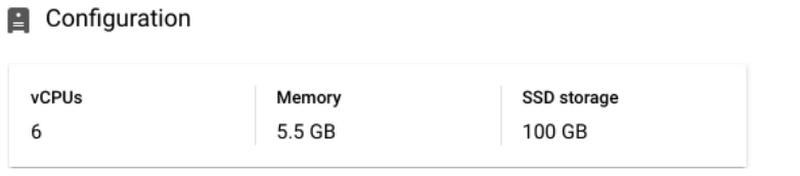
In this example, we have resized the instance to have 6 vCPUs, so we need to add four more TempDB data files to have 6 data files in total. This step can also be done outside of PowerShell as documented here as well.
Set-DbaTempDbConfig -SqlInstance 10.59.176.208 -SqlCredential $sqlserver -DataFileSize 48 -DataFileCount 6
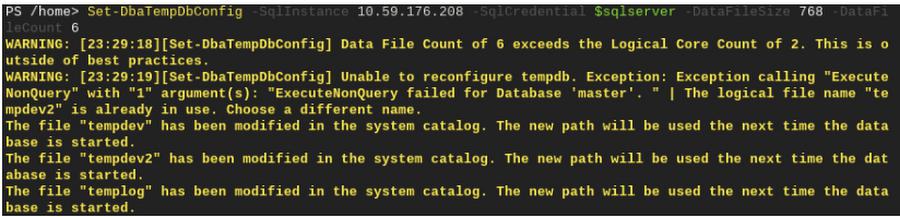
You may get a warning message like the one above that the logical filename is already in use. This happens because the powershell script tries to use a filename that already exists. To address this warning, you can remove all the TempDB files except the primary files (tempdev and templog).In our case we will use the script below to complete this action.
USE [tempdb]
GO
exec msdb.dbo.gcloudsql_tempdb_shrinkfile @filename = 'tempdev2', @empty_file = 1
exec msdb.dbo.gcloudsql_tempdb_shrinkfile @filename = 'tempdev3', @empty_file = 1
exec msdb.dbo.gcloudsql_tempdb_shrinkfile @filename = 'tempdev4', @empty_file = 1
GO
ALTER DATABASE [tempdb]  REMOVE FILE [tempdev2]
ALTER DATABASE [tempdb]  REMOVE FILE [tempdev3]
ALTER DATABASE [tempdb]  REMOVE FILE [tempdev4]
GO

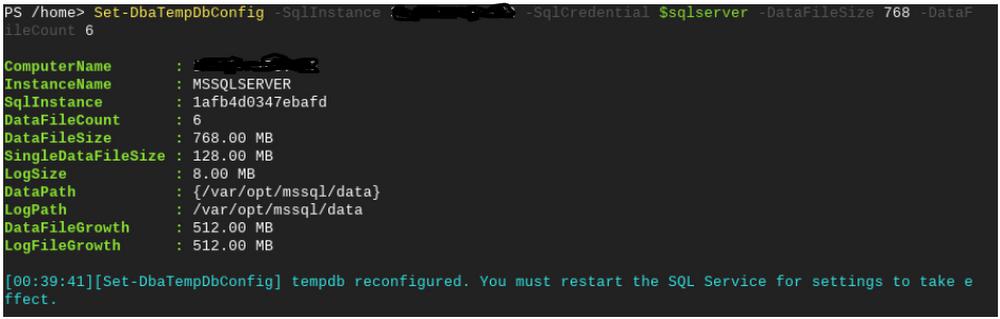
After the files have been cleared you will have two files remaining. 
Then you can try adding the appropriate amount of TempDB files again. Once that is done you will need to restart your Cloud SQL instance for the changes to take effect. 

Review DB wait statistics

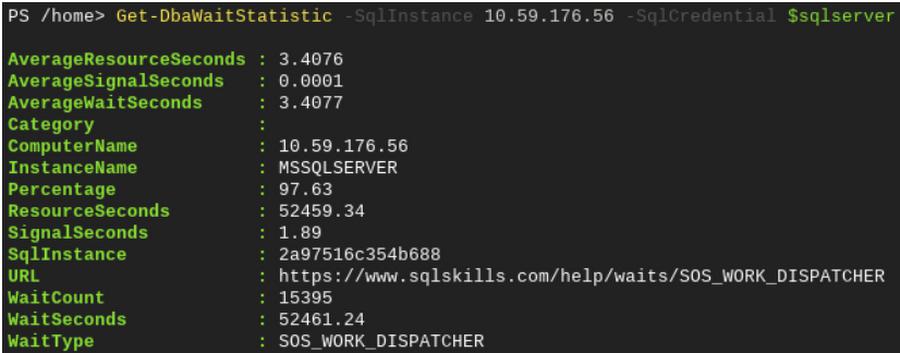
If you are experiencing performance issues or want to see what your Cloud SQL instance is waiting on, you can use the Get-DbaWaitStatistic cmdlet and check wait stats with a single command.

Get-DbaWaitStatistic -SqlInstance 10.59.176.56 -SqlCredential $sqlserver
Sync objects between replicas

If you are using a Cloud SQL for SQL Server read replica or Cloud SQL as a publisher for transactional replication, there are a few tasks that you should continue to perform, like keeping the SQL agent jobs in sync between instances. In this example, use the steps in Cloud SQL documentation to create a read replica. At the initial creation, objects are in sync on both the primary and secondary. We need to make sure to sync objects created after the replica is set up.

Read More  Google Cloud Unveils World’s Largest Publicly Available ML Hub With Cloud TPU V4, 90% Carbon-Free Energy

SQL Agent Jobs

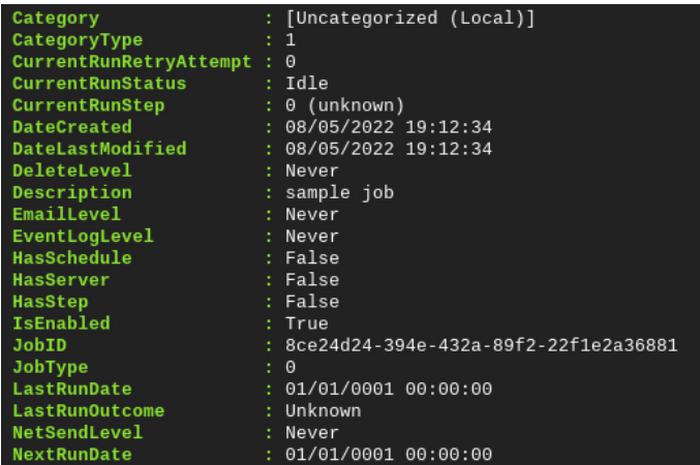
Let’s create a sample job on the primary instance that we will later sync to the replica instance.
You can use the New-DbaAgentJob cmdlet as below

New-DbaAgentJob -SqlInstance $primary -Job 'test-job' -Description 'sample job' -SqlCredential $sqlserver
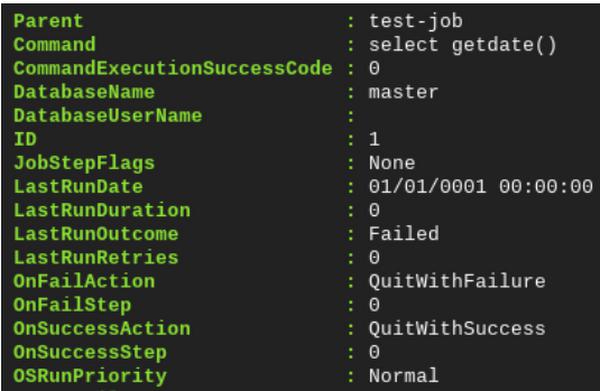
Now create a job step called test-step using New-DbaAgentJobStep
New-DbaAgentJobStep -SqlInstance $primary -Job test-job -StepName get-date -Command 'select getdate()' -SqlCredential $sqlserver
Now let’s sync the replica with this new job created In the previous step usingCopy-DbaAgentJob
Copy-DbaAgentJob -Source c -SourceSqlCredential $sqlserver -Destination $secondary -DestinationSqlCredential $sqlserver

We should see a job get copied that was created on the primary. You can use Get-DbaAgentJob to list jobs on the replica if necessary as well.
Get-DbaAgentJob -SqlInstance $secondary

If you made any changes on the primary and want to sync the secondary, you can use the –Force option to sync the changes. To demonstrate this we will make two changes listed below on the primary instance.

  1. Create a second sql agent job called second-job
  2. Add a second job step called second-step to the job named test-job

We will review then sync these changes above to the secondary server in these next steps.

Create a new job

New-DbaAgentJob -SqlInstance $primary -Job 'second-job' -Description 'second job' -SqlCredential $sqlserver
New-DbaAgentJobStep -SqlInstance $primary -Job second-job -StepName get-date -Command 'select @@servername' -SqlCredential

On the primary add another job step to the first job
New-DbaAgentJobStep -SqlInstance $primary -Job test-job -StepName second-step -Command 'select current_time' -SqlCredential $sqlserver

Now let’s review the jobs steps on the primary
Get-DbaAgentJobStep -SqlInstance $primary -SqlCredential $sqlserver | format-table

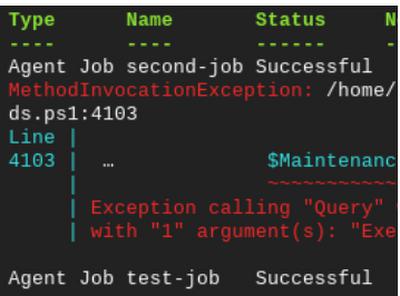
Now let’s sync the secondary server with the updates we made using the –Force option. You should see the second-job added and the test-job successfully updated as below.
Copy-DbaAgentJob -Source $primary -SourceSqlCredential $sqlserver -Destination $secondary -DestinationSqlCredential $sqlserver -Force
Importing data

You can also use powershell to import data (for example, a CSV file). You can choose your own CSV file or create a sample one using docs.google.com/spreadsheets/ Here is one with a small sample that I created
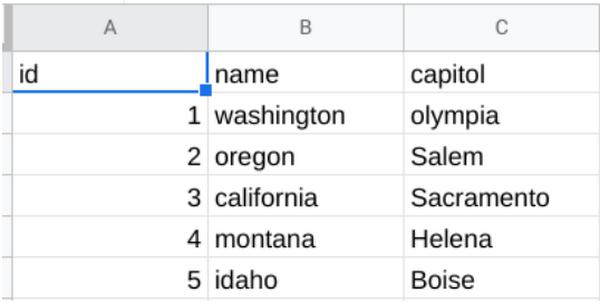
Using cat we can see the contents below as well.
cat ./import/States.csv
id,name,capitol
1,washington,olympia
2,oregon,Salem
3,california,Sacramento
4,montana,Helena
5,idaho,BoiseUse Import-DbaCsv to import this file to your Cloud SQL instance as shown below. This can also be used as an alternative to BULK INSERT.
Import-DbaCsv -Path ./import/States.csv -SqlInstance 35.232.7.183 -Database test -Table States -SqlCredential $sqlserver
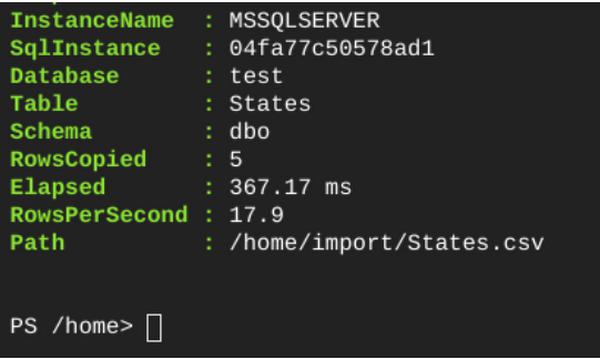
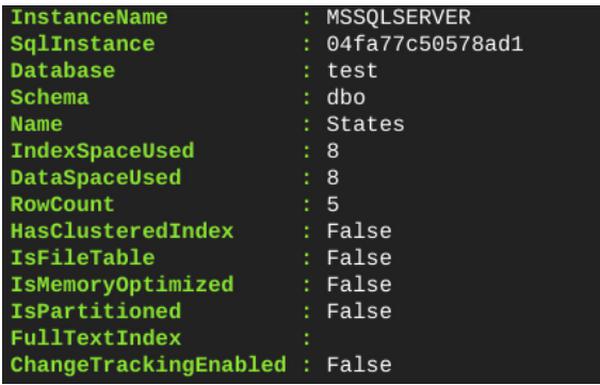
Now we can also list the table that was imported using Get-DbaDbTable
Get-DbaDbTable -SqlInstance $primary -Database test -Table States -SqlCredential $sqlserver
Read More  How To Use Advance Feature Engineering To Preprocess Data In BigQuery ML
You can see a table with 5 rows was created. 
This can also be used to transfer tables between instances as well. For example if you have two databases that are replicating data you can transfer objects between the primary and replica of a publisher setup. This could be used as a way to do an initial sync of objects that do not support replication such as tables without a primary key.This can be done using Copy-DbaDbTableDataWe will copy the states table that we imported above from the source to a destination database called newtest.
Copy-DbaDbTableData -SqlInstance $primary -SqlCredential $sqlserver -Destination $replica -DestinationSqlCredential $sqlserver -Database test -DestinationDatabase newtest -Table dbo.States -AutoCreateTable
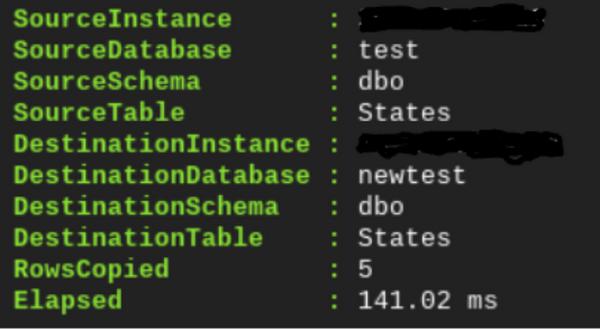
You can see the table was copied to the destination and 5 rows were copied in 141.02 ms 

Performing common DBA tasks

There are certain tasks that a DBA/DBE may need to perform to keep their Cloud SQL for SQL Server instance healthy, many of which can be done using PowerShell.

Unused indexes and Duplicate indexes

In many cases, having indexes improves the performance of selects, but they also cause some overhead to inserts and updates. It is normally recommended to review unused indexes and duplicated indexes. The two cmdlets listed below can be used to do this.

Find-DbaDbDuplicateIndex
Find-DbaDbUnusedIndex

Diagnostic queries on Cloud SQL

There is a common set of diagnostic queries provided by SQL Server MVP Glen Berry here.

We can use Invoke-DbaDiagnosticQuery to automatically execute and return the results for a specific set of queries or all these queries. There are a lot of queries and information that this returns so it could take a while. It might be a good idea to limit this to specific queries or target certain databases.

Here is an example of what a partial output looks like.

Invoke-DbaDiagnosticQuery -SqlInstance $primary -SqlCredential $sqlserver
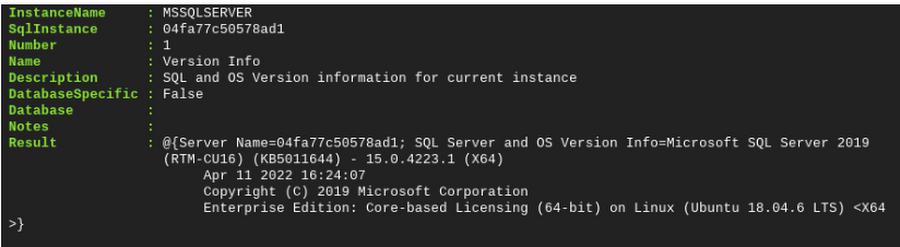
Here are some examples of queries you can execute on Cloud SQL to get Cross Region Replica Availability Group status and DB backup status. The output can also be formatted to a table as below for better readability.Example Executing Query : AG Status
Invoke-DbaDiagnosticQuery -SqlInstance $primary -SqlCredential $sqlserver -QueryNam 'AG Status' | Select -ExpandProperty result | Format-Table -AutoSize

Example Executing Query : Last Backup by Database
Invoke-DbaDiagnosticQuery -SqlInstance $primary -SqlCredential $sqlserver -QueryNam 'Last Backup By Database' | Select -ExpandProperty result | Format-Table -AutoSize

In this blog you learned how to use PowerShell on a Compute Engine Linux VM to manage your Cloud SQL instances. We covered only some of the more common scenarios, but there is much more that can be done using powershell and dbatools.io. To learn more and see the full list of commands available, you can visit https://dbatools.io/commands/.


By: Bryan Hamilton (Database Engineer, Cloud SQL)
Source: Google Cloud Blog


For enquiries, product placements, sponsorships, and collaborations, connect with us at [email protected]. We'd love to hear from you!

Our humans need coffee too! Your support is highly appreciated, thank you!

aster.cloud

Related Topics
  • Cloud SQL
  • Databases
  • Google Cloud
  • Linux
  • PowerShell
  • Tutorials
You May Also Like
View Post
  • Computing
  • Multi-Cloud
  • Technology

Wiz: 80% of cloud breaches are caused by basic mistakes

  • April 13, 2026
View Post
  • Computing
  • Multi-Cloud
  • Technology

Contact center monitoring best practices for CX leaders

  • April 9, 2026
View Post
  • Computing
  • Multi-Cloud
  • Technology

Cloud vs. local backup: Which is right for your organization?

  • April 9, 2026
View Post
  • Computing
  • Multi-Cloud
  • Technology

Why channel partners must design for tech sovereignty

  • April 7, 2026
View Post
  • Computing
  • Multi-Cloud
  • Technology

“A lot of other cloud vendors have been let off the hook”: Oracle leans hard on one-size-fits-all appeal of OCI for enterprises

  • March 30, 2026
View Post
  • Computing
  • Technology

Google Cloud and NVIDIA expand AI innovation across industries at GTC 2026

  • March 17, 2026
View Post
  • Computing
  • Multi-Cloud
  • Technology

Last year in AWS with Corey Quinn

  • March 9, 2026
View Post
  • Computing
  • Multi-Cloud
  • Technology

A guide to contact center security best practices

  • March 6, 2026

Stay Connected!
LATEST
  • 1
    You Do Not Need to Invest in the IPO of SpaceX, Anthropic, and OpenAI
    • June 10, 2026
  • 2
    The consequences of relying on AI for accurate news
    • June 10, 2026
  • 3
    Connecting AI agents with unstructured data using Google Cloud Storage MCP Servers
    • June 10, 2026
  • 4
    IBM and Google Cloud Announce Strategic Partnership to Scale AI with Human Expertise and AI‑Powered Delivery
    • June 4, 2026
  • Data center 5
    Data Sovereignty in Spain. It’s Not Just About the Law, It’s About Efficiency
    • June 3, 2026
  • 6
    Ink vs Pixels. What you miss versus what you are actually missing.
    • June 1, 2026
  • 7
    Banks race to patch new cyber vulnerabilities, and other cybersecurity news
    • May 25, 2026
  • pope-leo-xiv-cq5dam-1500.844 8
    Pope Leo XIV to Publish First Encyclical on Artificial Intelligence and Human Dignity on 25 May
    • May 22, 2026
  • 9
    Portfolio to Clients, and is Strengthened by Ongoing Project Glasswing Work
    • May 20, 2026
  • reMarkable Paper Pure 10
    Everything The reMarkable Paper Pure Actually Does
    • May 14, 2026
about
Hello World!

We are aster.cloud. We’re created by programmers for programmers.

Our site aims to provide guides, programming tips, reviews, and interesting materials for tech people and those who want to learn in general.

We would like to hear from you.

If you have any feedback, enquiries, or sponsorship request, kindly reach out to us at:

[email protected]
Most Popular
  • 1
    Scaling cloud and AI: Microsoft Azure’s commitment to Europe’s digital future
    • May 11, 2026
  • Anthropic Institute 2
    Introducing The Anthropic Institute
    • March 11, 2026
  • reMarkable Paper Pure 3
    The Quiet Revolution You Did Not Know You Needed
    • May 9, 2026
  • spain-qNO3XMQILTA-unsplash 4
    When the World Feels Unstable, Spain Remains the Calm. Here’s How to Get There Safely.
    • May 2, 2026
  • 5
    Why The CLOUD Act And Geopolitics Are Forcing A Data Sovereignty Reckoning In Europe
    • May 2, 2026
  • /
  • Technology
  • Tools
  • About
  • Contact Us

Input your search keywords and press Enter.